
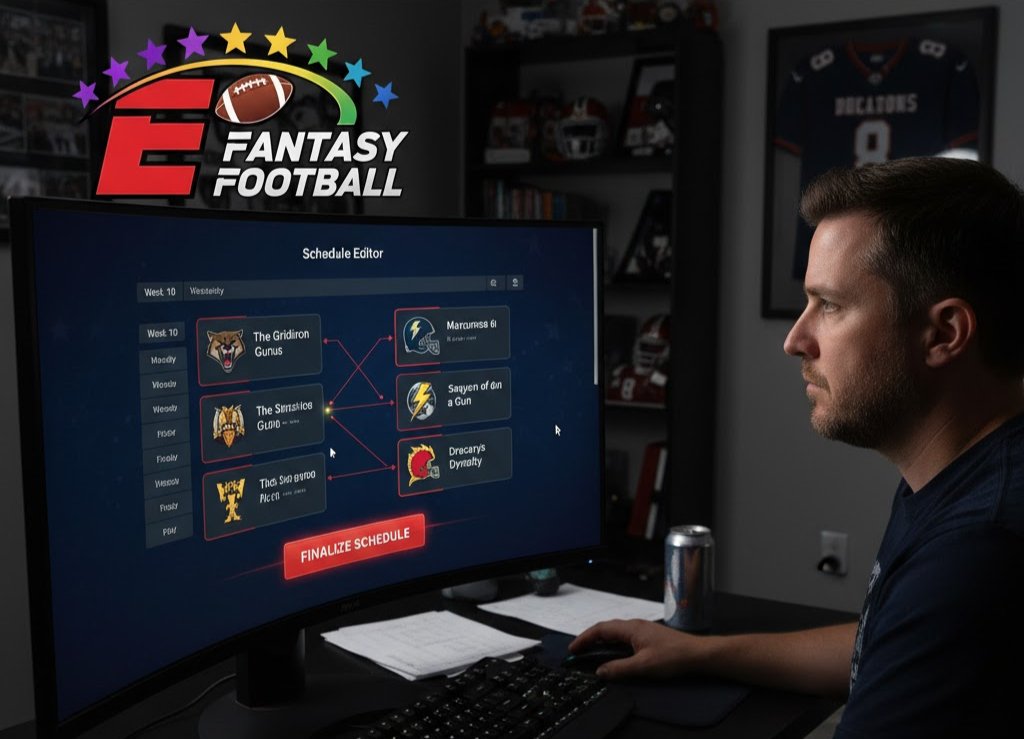
If you’re the commissioner of an ESPN Fantasy Football league, you know how important it is to keep things fair, competitive, and exciting. One of the best ways to do this is by randomizing your fantasy football schedule. Whether you’re starting a new league or refreshing an existing one, learning how to randomize ESPN Fantasy Football schedule helps ensure everyone gets a balanced and unpredictable matchup experience.
In this detailed guide, we’ll explain exactly how to randomize your schedule on ESPN Fantasy Football, why you should do it, and the best strategies to keep your league running smoothly throughout the season.
What Is a Fantasy Football Schedule?
A fantasy football schedule is the system that determines which team plays against which each week during the season. On ESPN Fantasy Football, the league’s schedule automatically pairs teams for weekly head-to-head matchups. Typically, in a 10 or 12-team league, each team plays a set number of regular-season games before the playoffs.
While ESPN provides a default schedule, commissioners have the power to customize or randomize it — allowing for more flexibility and fairness.
Why Randomize Your ESPN Fantasy Football Schedule?
Before learning how to randomize ESPN fantasy football schedule, let’s look at why you might want to do it. Here are the top reasons:
1. Fairness and Balance
If the schedule is automatically generated, certain teams may face tougher opponents more often. Randomizing ensures that no one has an unfair advantage or disadvantage.
2. Excitement and Unpredictability
A randomized schedule adds surprise and anticipation. You never know who you’ll face next — just like real football!
3. Custom League Preferences
Some leagues prefer rival matchups early in the season or rematches later. By randomizing, you can easily shuffle these to fit your league’s vibe.
4. Prevents Complaints
Nothing causes drama faster than a “rigged” schedule. Randomizing removes any suspicion of favoritism and keeps the league fun for everyone.
How to Randomize ESPN Fantasy Football Schedule (Step-by-Step)
Now, let’s dive into the exact process of how to randomize ESPN Fantasy Football schedule for your league. These steps apply to both desktop and mobile versions of ESPN Fantasy Football.
Step 1: Log in to Your ESPN Fantasy Account
Go to ESPN Fantasy Football and sign in using your ESPN account. Make sure you’re logged in as the league manager (LM) since only commissioners can edit schedules.
Step 2: Go to Your League Homepage
After logging in, click on your fantasy football league name. You’ll land on your league homepage, where you can view standings, matchups, and commissioner tools.
Step 3: Access the “LM Tools” Section
On the desktop version, you’ll find “LM Tools” in the navigation bar or sidebar. Click it to open commissioner settings.
This section allows you to manage teams, scoring, draft settings, and — most importantly — schedules.
Step 4: Select “Edit Schedule”
Scroll through the LM Tools options until you find “Edit Schedule.”
Here, you’ll see the current weekly matchups for your league, including every team and opponent.
Step 5: Delete or Reset the Existing Schedule
Before randomizing, you can reset the current schedule if it has already been generated. Look for the “Reset Schedule” button to clear existing matchups.
Once you reset, ESPN will either:
Auto-generate a new schedule, or
Allow you to manually assign matchups.
Step 6: Randomize the Schedule
Here’s where the fun begins. ESPN doesn’t have a built-in “randomize schedule” button, but you can easily do it using one of these three methods:
Option A: Manual Shuffle
Manually rearrange the matchups each week by clicking on the teams and swapping opponents. This lets you create a random but balanced schedule.
Option B: Use a Randomizer Tool
You can use a third-party randomizer such as:
Simply:
List your team names.
Randomize them for each week.
Enter those matchups into ESPN manually.
Option C: Auto-Generate After League Creation
If your league is brand new, simply delete and re-create the schedule before the draft. ESPN will auto-assign matchups randomly each time a reset occurs.
Step 7: Save the Changes
Once you’ve randomized and finalized your weekly matchups, click “Save Schedule.”
Double-check that every team has a game each week and no duplicates exist.
Step 8: Announce to Your League
After finalizing the schedule, post a league message or group chat update to announce the randomized schedule. Transparency helps build trust among league members.
When Should You Randomize the Schedule?
It’s best to randomize your ESPN fantasy football schedule before the draft or before Week 1 of the NFL season. Once the season starts, editing the schedule becomes more limited.
If you must make changes mid-season (due to team replacements, missed weeks, or bye issues), you can still manually adjust the remaining weeks in LM Tools.
Pro Tips for Fantasy Football Commissioners
To make your league more engaging, follow these expert commissioner tips while randomizing:
Tip 1: Use Rivalry Weeks
Include at least one “Rivalry Week” where long-time friends or rivals face off. You can lock that in before randomizing the rest.
Tip 2: Balance Bye Weeks
Avoid scheduling a matchup between two teams missing multiple top players due to NFL bye weeks.
Tip 3: Keep Rematches Late
Try scheduling rematches toward the end of the regular season for added drama.
Tip 4: Communicate Transparently
Always share how you randomized the schedule (for example, using Random.org). Transparency avoids any confusion or arguments.
Example of a Randomized Schedule
Here’s a simple example for a 10-team ESPN Fantasy Football league after randomization:
| Week | Matchup 1 | Matchup 2 | Matchup 3 | Matchup 4 | Matchup 5 |
|---|---|---|---|---|---|
| 1 | Team A vs Team D | Team B vs Team F | Team C vs Team E | Team G vs Team I | Team H vs Team J |
| 2 | Team A vs Team F | Team B vs Team H | Team C vs Team G | Team D vs Team I | Team E vs Team J |
| 3 | Team A vs Team I | Team B vs Team J | Team C vs Team H | Team D vs Team G | Team E vs Team F |
This pattern can continue throughout the season. Just make sure no team faces the same opponent twice before Week 13 (in a standard 14-week season).
Troubleshooting Schedule Issues
If your randomized ESPN Fantasy Football schedule isn’t saving or showing properly:
Clear your browser cache and reload the page.
Check LM permissions — only commissioners can edit schedules.
Ensure league size matches schedule format (e.g., 10-team schedule for 10 teams).
Contact ESPN Support if technical glitches persist.
Randomizing Schedule on the ESPN Fantasy App
If you’re managing your league on mobile, the process is slightly different:
Open the ESPN Fantasy app.
Tap “League” at the bottom.
Tap “LM Tools.”
Select “Edit Schedule.”
Use the swap icons to change opponents.
Save your updates.
Note: Some editing features (like full reset) may only be available on the desktop version.
The Benefits of a Randomized ESPN Fantasy Schedule
By taking the time to randomize your league’s schedule, you’ll notice several benefits:
Equal opportunity for all players
Balanced competition across the season
More engagement and participation
Elimination of bias in matchups
Improved overall fun and fairness
A truly randomized schedule ensures every team has a fair shot at making the playoffs — no lucky or unlucky streaks based purely on matchups.
Final Thoughts
Randomizing your ESPN Fantasy Football schedule is a simple yet powerful way to make your league more competitive and enjoyable. It ensures every team has a fair path, keeps rivalries exciting, and eliminates the perception of bias in matchups.
Whether you’re managing a casual friends’ league or a serious competitive one, learning how to randomize ESPN fantasy football schedule will elevate your commissioner game and create a better experience for everyone.
So before the next season kicks off, take a few minutes to set up a fair and fun schedule — your league members will thank you for it!