
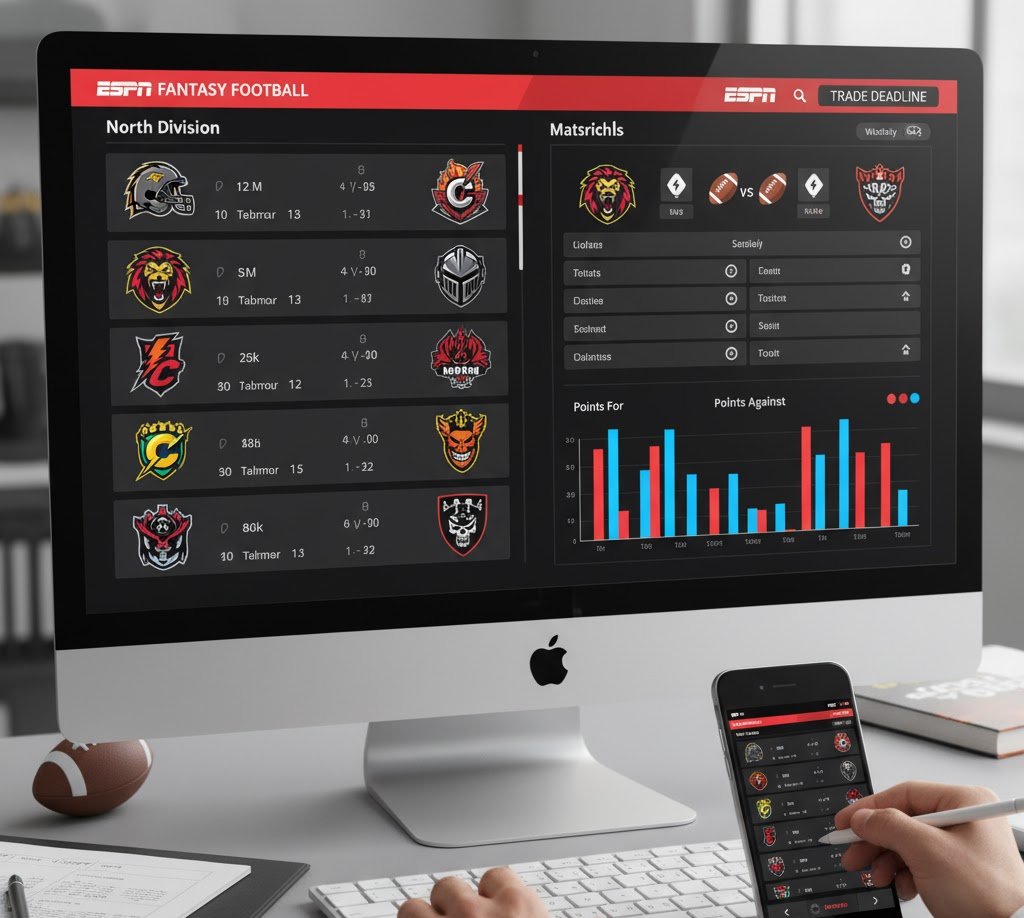
Fantasy football leagues are all about strategy, community, and fun competition. ESPN Fantasy Football makes managing your league simple — but when it comes to divisions, things can sometimes get a little confusing. Whether you’re trying to reorganize teams before the draft, balance competition levels, or simply rename divisions to match your league’s theme, knowing how to change divisions in ESPN Fantasy Football is essential.
In this detailed guide, we’ll explain exactly how to manage and edit divisions, when you can make changes, and common mistakes to avoid.
What Are Divisions in ESPN Fantasy Football?
Divisions in ESPN Fantasy Football are sub-groups within a league. They help structure competition, especially in larger leagues. Instead of one big group of 12 teams, you can split teams into two or more divisions.
For example:
Division A (East): 6 teams
Division B (West): 6 teams
Divisions make scheduling easier, create rivalries, and allow for more balanced playoff setups. They can also add a fun, creative element to your league — you can name divisions after football conferences, fantasy themes, or even inside jokes.
Why Change Divisions in ESPN Fantasy Football?
There are several reasons a commissioner or manager might want to change divisions:
Balancing Competition – If one division has stronger teams, you can move players around for fairer play.
Adding or Removing Teams – When expanding or reducing your league size, divisions may need to be reshuffled.
Changing Themes or Names – You might rename divisions every year for fun, like “Rookies vs Veterans.”
Fixing Draft Order Issues – Sometimes divisions are created automatically and need manual adjustment.
Preseason Adjustments – Before the draft, you might reorganize to reflect new managers or team updates.
How to Change Divisions in ESPN Fantasy Football
Changing divisions can only be done by the league manager (commissioner). Here’s how to do it step by step:
Step 1: Log Into Your ESPN Fantasy Football Account
Go to the official ESPN Fantasy Football website or open the ESPN Fantasy app.
Sign in using the same account that manages your league.
Step 2: Access Your League Homepage
From the ESPN Fantasy dashboard, select your league under the “My Leagues” section.
You’ll land on your league’s main page, showing standings, teams, and scores.
Step 3: Enter League Settings
Click on the “LM Tools” (League Manager Tools) tab if you’re using desktop.
On mobile, tap the settings gear icon in the top-right corner, then choose “League Settings.”
Step 4: Navigate to the Divisions Section
Scroll down until you see the Divisions or League Setup section.
Here, you’ll see the current structure — how many divisions exist and which teams are in each.
Step 5: Edit Divisions
Click “Edit Divisions” or “Change Division Setup.”
You’ll now see options to:
Rename divisions
Move teams between divisions
Add or remove divisions (if the league format allows)
Tip: Each division must have at least one team. ESPN may limit division changes depending on league type and timing (for example, after the draft, edits might be locked).
Step 6: Save Your Changes
Once you’ve organized your teams into the right divisions, scroll down and click “Save Changes.”
Refresh your league page to confirm that divisions updated correctly.
How to Change Divisions Using the ESPN Fantasy App
If you’re managing your league on a mobile device:
Open the ESPN Fantasy App.
Tap on your Fantasy Football league.
Tap the gear icon (⚙️) for settings.
Choose League Manager Tools → Edit Divisions.
Adjust division names or move teams as needed.
Tap Save to confirm updates.
Some advanced settings (like creating or deleting divisions) may only be available on desktop.
When Can You Change Divisions?
You can only change divisions before your league’s draft starts.
Once the draft is complete and the season begins, ESPN locks certain league settings — including divisions — to maintain fairness and consistency.
You can edit divisions:
Before the season starts
Before the draft
After adding or removing teams
You cannot edit divisions:
After the draft
Once games have begun
During the playoffs
If you must change divisions mid-season, your only option is to recreate the league for next year and manually set divisions before the draft.
Best Practices for Setting Up Divisions
When creating or changing divisions in ESPN Fantasy Football, keep these tips in mind:
1. Balance the Talent
Don’t put all the top players or managers in one division — aim for competitive balance.
2. Name Your Divisions Creatively
Instead of “Division 1” and “Division 2,” try names like:
Gridiron Legends vs Sunday Warriors
AFC vs NFC
Offense vs Defense
This adds personality and excitement to your league.
3. Use Division Rivalries for Engagement
Schedule friendly matchups within divisions — it keeps managers more active and adds drama to the season.
4. Communicate Changes Early
Always notify league members when you change divisions, especially before the draft. Transparency keeps everyone happy.
Common Issues When Changing Divisions
| Problem | Possible Cause | Solution |
|---|---|---|
| Division edit button not visible | Not a League Manager | Ask LM to make the change |
| Can’t save changes | Post-draft or season started | Wait until next season |
| App not showing option | Limited mobile features | Use desktop browser |
| Uneven divisions | Odd number of teams | Adjust league size or merge divisions |
Final Thoughts
Changing divisions in ESPN Fantasy Football might seem small, but it can have a big impact on how your league runs. Balanced divisions lead to better matchups, fair playoff opportunities, and more fun rivalries throughout the season.
As the League Manager, take a few minutes before each draft to review and update your division setup. It’s one of the best ways to ensure your league stays fair, engaging, and competitive all season long.